
For staff
Jetstone on this computer
Your organisation uses Jetstone to protect this computer from ransomware, harmful programs and attacks. It starts with Windows and runs in the background.
Your first day
Where these steps say click, tap instead if your computer has a touch screen.
- Find the Jetstone icon next to the clock: a rounded square with three shards. If it is not there, it is under the ^ arrow, Show hidden icons.
- Click the icon. The first line should read Jetstone Business: Protected. If it shows another status, read what it means.
- Know who to ask. The menu names your administrator. To ask for a program, choose Ask my administrator to review.
You are set when the Jetstone icon is next to the clock and pointing at it shows Jetstone Business: Protected.
If there is no Jetstone icon next to the clock or under the ^ arrow, Jetstone may not be set up on this computer yet. Tell your administrator, or read what to do when it is not set up.
What Jetstone does
Jetstone watches what programs do on this computer: the programs that start, the files they change and the sites and addresses they connect to.
When something looks harmful, Jetstone stops it and tells your administrator. Your organisation chooses which of these you also see as a notice by the clock.
The first notice after Jetstone is installed reads This computer is protected by Jetstone. There is nothing for you to do.
Find the Jetstone icon
- Look at the right end of the taskbar, next to the clock, for the Jetstone icon: a rounded square with three shards. When the status is not Protected, a small coloured square sits beside it.
- If you do not see it, click the ^ arrow next to the clock. Its label is Show hidden icons. Windows keeps new icons there at first.
- Point at the icon. Its label starts with Jetstone Business, then this computer's status. Windows Security shows a shield nearby, and earlier versions of Jetstone used a shield too, so the label is the sure way to tell them apart.
- To keep the icon next to the clock, drag it from that list onto the taskbar beside the clock. If it will not stay, open Settings, then Personalisation, then Taskbar, then Other system tray icons and turn on the switch for Jetstone Business.
- Click the icon to open the Jetstone menu. The first line is this computer's status.
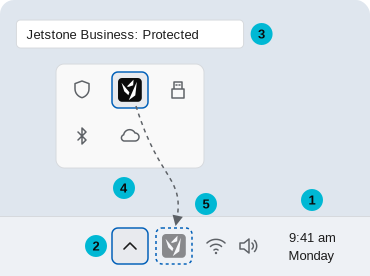
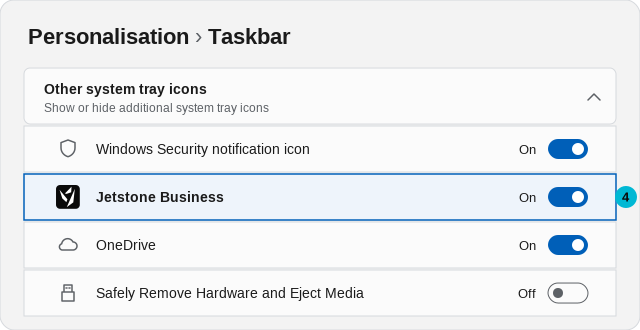
On Windows 10 the ^ arrow works the same way. To keep the icon shown, open Settings, then Personalisation, then Taskbar, choose Select which icons appear on the taskbar and turn on Jetstone Business.
The status
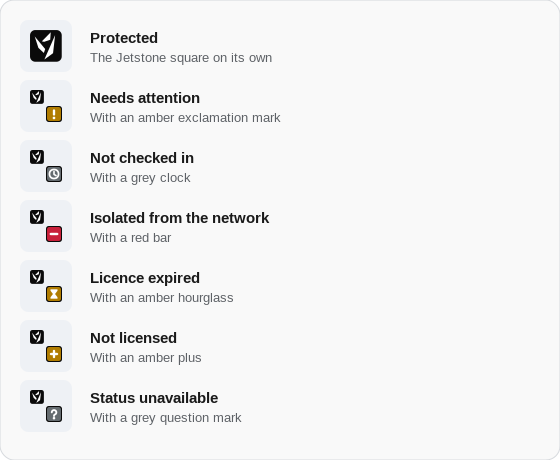
What the status in the Jetstone menu means
- Protected
Jetstone is running and in touch with your organisation. There is nothing for you to do.
- Needs attention
Something on this computer needs your administrator. The lines under the status say what. Tell your administrator what they say.
- Not checked in
This computer has not reached your organisation's Jetstone for a while, often because it was offline. The line under the status says when it last checked in. Connect to the internet, and if the status stays the same for a day, tell your administrator. On a new computer it can also mean set-up has not finished: read the line under it, and follow the steps for a computer that is not set up.
- Isolated from the network
Your administrator has cut this computer off from the network during a security incident. Leave it switched on and contact your administrator.
- Licence expired
Your organisation's Jetstone licence has run out. Tell your administrator.
- Not licensed
This computer is over the number of computers your organisation is licensed for. Tell your administrator.
- Status unavailable
The Jetstone service on this computer is not answering the menu. Restart the computer. If the status stays the same, choose Send diagnostics if the menu offers it, and tell your administrator.
The lines in the Jetstone menu
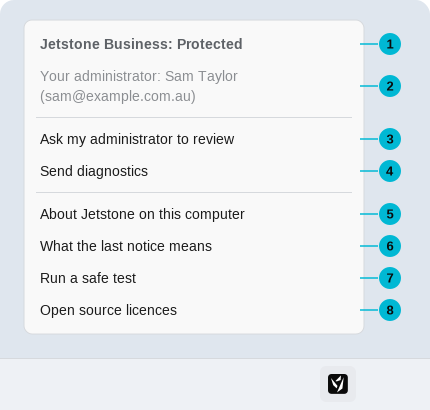
- Number 2Your administrator
- Shows when your organisation has named who looks after Jetstone. It gives their name and email, so you know who to contact.
- Number 3Ask my administrator to review
- Asks your administrator to look at this computer, for example to allow a program you need.
- Number 4Send diagnostics
- Sends your administrator the details they need to look into a problem with this computer.
- Stop the paused program
- Shows while Jetstone has paused a program. It stops the program and moves it into quarantine.
- Delay updates by an hour
- Shows before Windows updates install. It moves them back by an hour.
- Ask for access to this device
- Shows while a blocked USB drive or other device is connected. It asks your administrator to allow it.
- Continue for 24 hours
- Shows after Jetstone warned you about a site. It lets this computer reach that site for 24 hours.
- Number 5About Jetstone on this computer
- Opens the Jetstone guide for staff on blackshard.com.au.
- Number 6What the last notice means
- Shows for a day after a notice, and while this computer is isolated. It opens the part of the guide for that notice.
- Number 7Run a safe test
- Checks that Jetstone can see and report on this computer. Nothing on the computer changes.
- Number 8Open source licences
- Lists the open source software Jetstone uses and its licences.
What Jetstone never reads
Jetstone does not read your documents, your emails or the contents of your files.
It does not record your keystrokes, take pictures of your screen, or use your camera or microphone.
If a password or key appears in something a program runs, Jetstone removes it on this computer before sending anything.
What Jetstone sends your organisation: the names of programs and files, the sites and addresses programs connect to, the Windows account that is signed in, the devices you connect, and this computer's settings and installed software. Your administrator sees these when they look into an alert.
What Jetstone sends goes to your organisation's workspace, held in Microsoft Azure in Australia.
Jetstone stopped the program, or moved the file into quarantine, because it looked harmful. The notice names it.
A file in quarantine stays on this computer where it cannot run. Your administrator already has the details and can restore it if it is safe.
If you need the program for your work, ask for it.
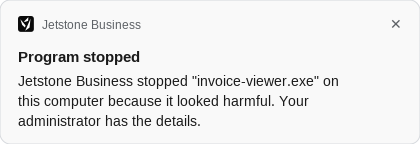
Save your work in your other programs now.
Jetstone paused the program because it was changing many files at once, which is how ransomware behaves.
If you did not expect it, click the Jetstone icon and choose Stop the paused program. Jetstone stops it and moves it into quarantine.
If you expected the program to change your files, ask for it: choose Ask my administrator to review, then tell your administrator the program name from the notice. When your administrator allows it, Jetstone lets it carry on and you see a notice that says so.
Jetstone blocked a connection to a site it is not sure about. The notice names the site.
If you trust the site, click the Jetstone icon and choose Continue for 24 hours. This computer can then reach it for 24 hours, and your administrator can see that you continued.
If the menu does not show Continue for 24 hours, choose Ask my administrator to review, then tell your administrator the site name from the notice.
Your organisation chooses the kinds of site this computer can open. The notice names the site and its kind.
If you need the site for your work, choose Ask my administrator to review, then tell your administrator the site name from the notice.
Your organisation chooses the kinds of device that can connect to this computer. A blocked device does not open. A read-only device opens, and you can copy files from it but not save to it.
- Keep the device connected.
- Click the Jetstone icon and choose Ask for access to this device. If the menu does not show it, choose Ask my administrator to review and tell your administrator what the device is.
- Wait for a notice. When your administrator allows the device, a notice says so while it is still connected.
- If the notice asks you to, unplug the device and connect it again.
Save your work before the updates start.
Your administrator sets when Windows updates install. Jetstone tells you about 10 minutes before updates install, and before this computer restarts to finish them.
If you need more time, click the Jetstone icon and choose Delay updates by an hour while the menu shows it.
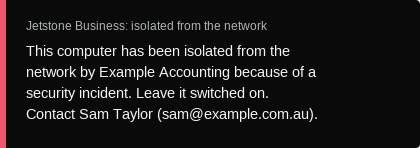
During a security incident your administrator can cut this computer off from the network, so a problem on it cannot spread. Jetstone keeps its own connection so your administrator can reconnect it.
A notice stays on screen until the computer is reconnected. It names who to contact and says what to do: leave the computer switched on and contact that person.
While the computer is isolated it cannot open websites, so the notice on screen carries everything you need to do.
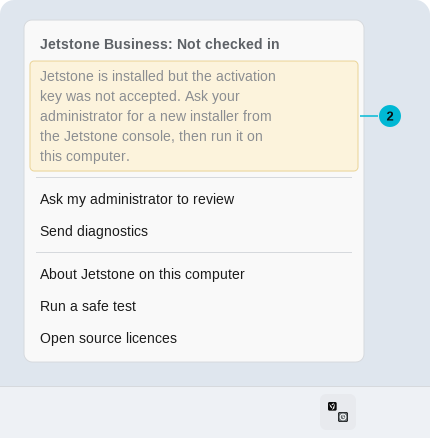
Jetstone is installed but has not finished joining your organisation. The notice says why.
- Click the Jetstone icon to open the menu.
- The status says Not checked in. Read the line under it. It says why this computer is not set up.
- Send that line to your administrator, word for word.
Ask for a program
If Jetstone stops a program you need for your work, your administrator can allow it, for this computer or for everyone in your organisation.
- Click the Jetstone icon next to the clock.
- Choose Ask my administrator to review. Jetstone sends your request with this computer's name and your Windows account name, and a notice confirms it was sent.
- Tell your administrator the program's name from the notice and what you use it for. Their name and email are in the menu on the line that starts Your administrator. If the menu has no such line, ask the person who looks after the computers where you work.
After you ask
- Your administrator sees your request in the Jetstone console, on this computer's page.
- When they allow the program, they tell you, and it opens the next time you start it.
- If no one has answered by the next working day, ask your administrator again or choose Ask my administrator to review again.
Run a safe test
Your administrator may ask you to run a safe test to check that Jetstone can see and report on this computer.
Click the Jetstone icon and choose Run a safe test. Nothing on this computer changes.
A notice that says Safe test run means it worked, and your administrator sees a test incident in the console shortly. A notice that says Safe test not run means the test could not start, so tell your administrator.
Who to ask
Your administrator is the person who looks after Jetstone for your organisation.
They see every alert from this computer, they choose what Jetstone does on its own, and they are the only one who can remove it.
When your organisation has named them, their name and email are in the Jetstone menu, on the line that starts Your administrator.
If the menu has no Your administrator line, ask the person who looks after the computers where you work, or your manager.
When the menu offers Send diagnostics, it sends your administrator the details they need to look into a problem with this computer.
For administrators
If you look after Jetstone yourself, sign in to the Jetstone console to answer what this computer shows.
- A program someone asked for: open the device in Devices and find the request under Requests from this computer. Open the program's incident and choose This was safe, then choose Mark handled.
- Not set up: the line under the status names the problem. Send a new install link from Devices.
- Isolated: open the device in Devices and choose Release isolation once the incident is dealt with.
- A blocked site: add it to the exceptions in Policy, Web filter.
- A blocked device: allow it in Policy, Device control.
- Licence expired or not licensed: open Billing to renew the licence or cover more devices.
Black Shard Pty Ltd, ABN 66 696 910 773