Set up and run Jetstone Business
Create your workspace, then install the agent on your Windows PCs. Email us with your workspace name and what you are seeing.
- support@blackshard.com.au
Include the workspace name and, for a device, its name in the console. Owners can reply to any Jetstone email.
- Console
- Sign in to the console
Billing, devices, incidents and the policy preset are all in the console.
- Security reports
- Report a vulnerability
Reports are acknowledged within two business days.
Set up in order, at your own pace
- For the ownerGetting startedFrom sign-up to every PC protected, people invited and the first incident handled.
10 steps
- For the IT admin or IT providerIT setupThe network, the deploy, sign-in, groups and exclusions, and the feeds into your own tools.
8 steps
- For ITIT quick start PDFThe deploy pack on A4, to print or forward to whoever rolls Jetstone out.
- For staffJetstone on this computerFinding the icon, what it never reads, and how to ask for a program. Send it to your staff.
The console, as it looks today
28 guides in 6 sections, from sign-in to incidents, each a step shown screen by screen.
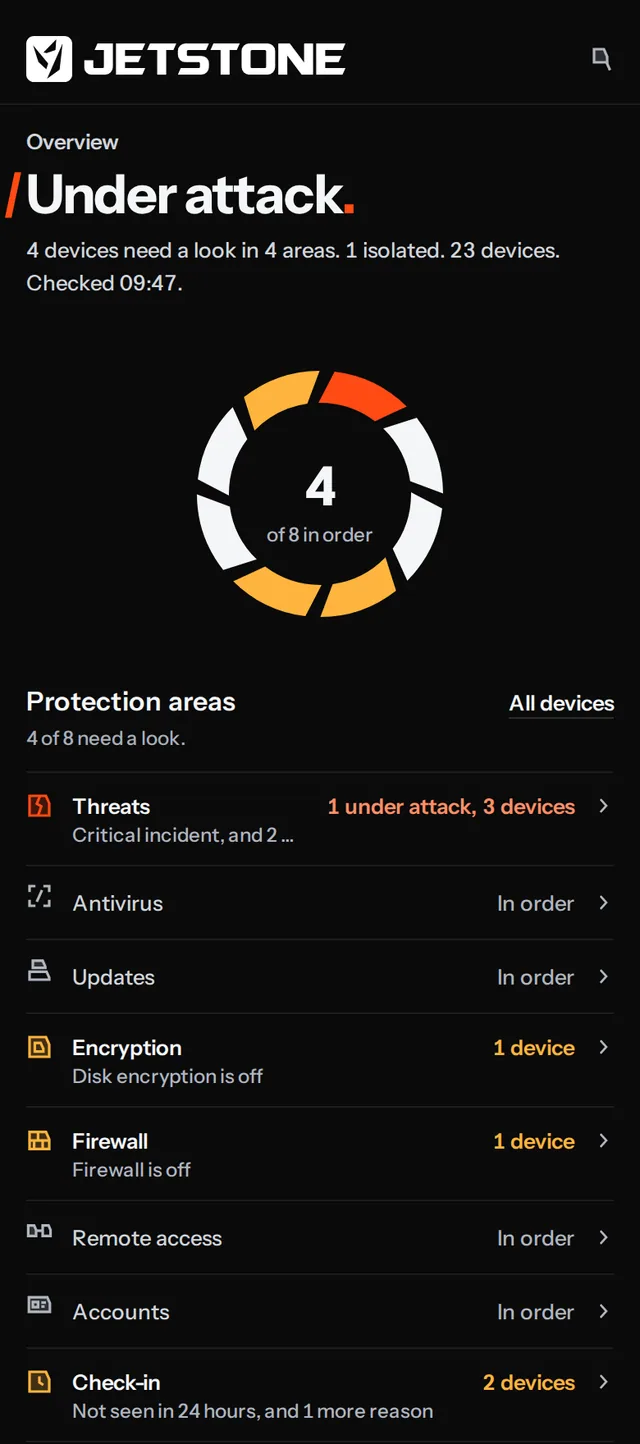
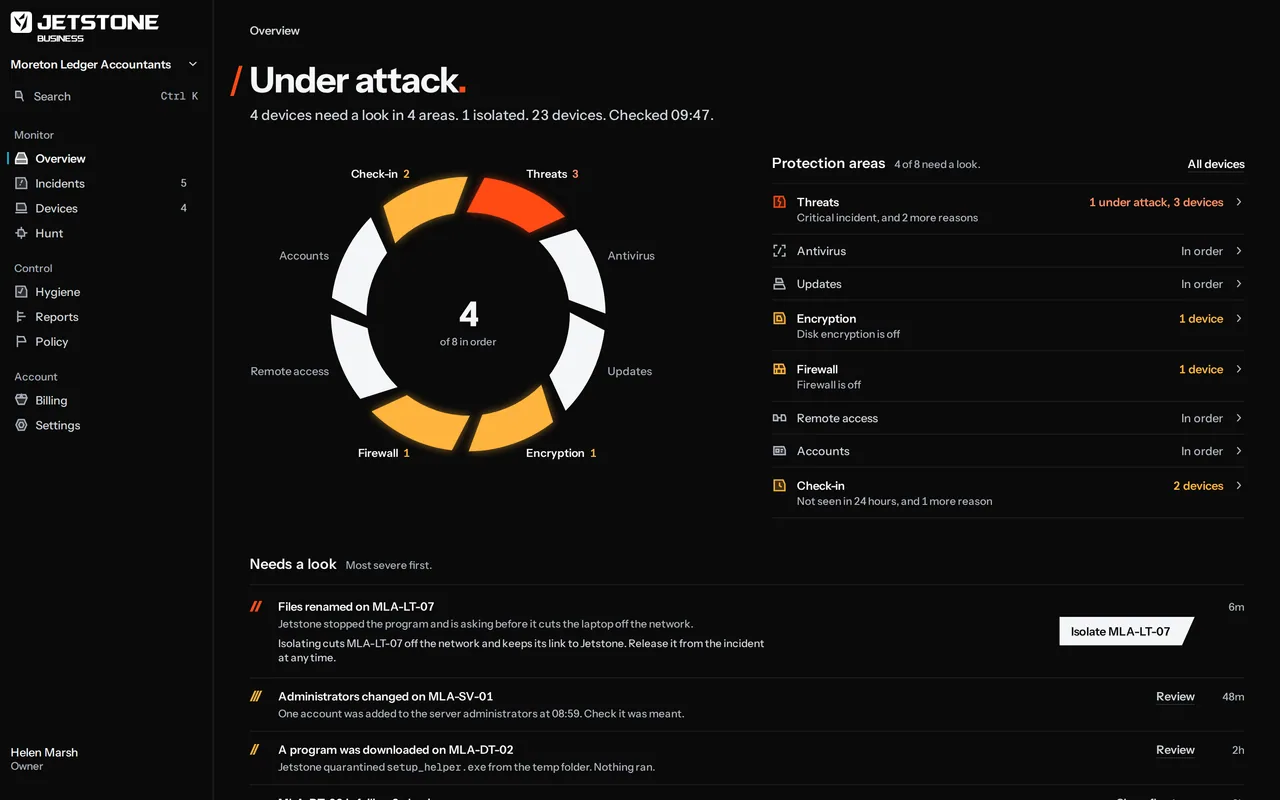
From a new workspace to a protected fleet
Create your workspace
From sign-up to the console, in about ten minutes.
- Go to console.blackshard.com/signup (or open the link in your invitation), enter your email address and choose Continue.
- Type the six-digit code Jetstone mails you. It works for 10 minutes.
- Name the workspace, enter your name and choose Create workspace.
- Set up an authenticator app, save your recovery codes, then choose Use a passkey. If you add the passkey later and nothing happens, sign out, sign in again, then add it.
Install the agent
On the PC in front of you, on another PC with a one-time link, or across many PCs with Intune, Group Policy or an RMM tool.
- Sign in to the console and open Devices, then Add PCs. Owners and admins can add devices.
- On the Windows PC, choose Protect this PC and confirm it is you. Open the download and say Yes when Windows asks.
- For another PC, choose Make the link under Another PC. The link protects one PC and works for 3 days.
- Each PC shows under Waiting as Downloaded, Installing, then Protected.
- For many PCs, open Advanced and choose Make a key for many PCs, then download the Intune pack, the Group Policy startup script or the PowerShell script for RMM tools. Each pack hands the key to the installer in a file.
Every step, screen by screen
Install and roll out
Presets and policy
Microsoft 365 and Google Workspace
Alerts, people and billing
Uninstall and remove
In the console
Undo an action
Open the incident in the console or the notification and choose Undo on the action. A released device reconnects to the network at its next check-in.
Remove a device
Uninstall Jetstone Agent from Windows Settings, then remove the device in the console.
Cancel
Choose Cancel on the Billing page. The workspace stays open until the end of the paid term.
Export a workspace
An owner or admin exports the workspace as JSON or CSV from Settings, Data and privacy.
More guides
Each console screen has its guide under Help in the console.
Adding devices or a second site?Contact sales