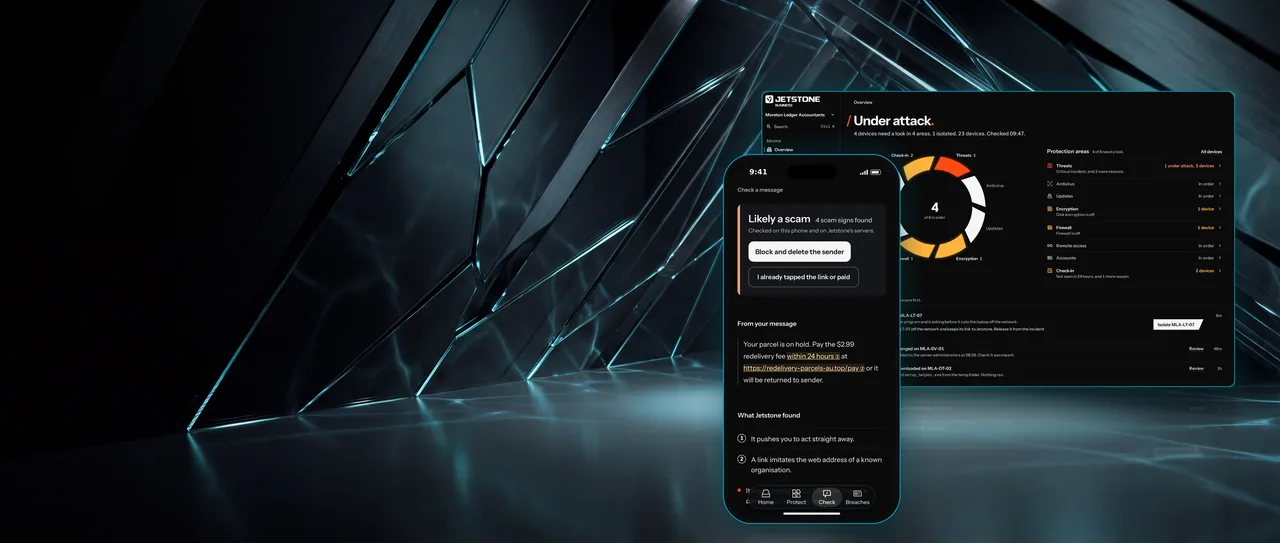
Scams
Check a message
Paste a text, email or link you are unsure of and get a verdict with the signs Jetstone found.
Watch it on the phone
Check a message the first time
The three tips, the sample message, and the verdict with what Jetstone found. 35.5 seconds, captions, no sound.
On your phone, screen by screen
Swipe for screen 2 of 4. Tap a screen to see it full size.
How to
Check a message for scams
Paste or share a suspicious message or link and get a verdict with the reasons before you reply or tap.
The message check reads a message or link you choose and gives one of three verdicts with the reasons: Likely a scam, Suspicious, or No scam signs found.
Check a message
- Copy the message, or the link inside it, without opening the link.
- Open Jetstone and, on Home, tap Check a message.
- Paste it and choose Check.
You can also share text or a link to Jetstone from another app's share menu.
On AndroidOn Android, select text in any app and choose Check with Jetstone.
What is sent
The first check runs on your phone. With your consent, Jetstone also sends the one message you chose for a deeper check, with numbers such as card and phone numbers removed first. It is checked in Australia and Jetstone keeps no copy. Your other messages and your contacts are never read.
When a caller asks you for a code
A code your bank or a service texts you is for you alone. Hang up and call back on the number on your card or the service's own site.
A code your bank, your phone company or any service sends you is for you to type in yourself. Your bank and Jetstone keep it between you and the screen it was sent for.
- Hang up, even if the caller knows your name or account details.
- Call your bank back on the number printed on your card, or the number on the service's own website.
- Tell them a caller asked for your code, so they can check your account.
If you already read out a code, act now: follow the scam response guide.
Before the next call
- Check a message that asks for a code.
- Set a family safe word, so a voice you know can prove it is them.
More Jetstone tutorials
First run
Protect this phone
Install Jetstone, run the first checks and turn on web protection, in the order the app asks.
Everyday
The checks
What Jetstone checks on your phone, the Wi-Fi you join and your passwords, and how to fix what it finds.
Plans
Plans, the free trial and your subscription
How the free trial works, how to change or cancel your plan, and how to restore it on a new phone.
Install
Install Jetstone on iPhone and Android
Get Jetstone from the App Store or Google Play and run the first checks. You start with no account and no card.
Plans
Start your free trial
A new subscription starts with 7 days free. The store shows the price and the date of the first charge before you confirm.
Plans
Plans and what each covers
Free, Mobile Only, Personal, Personal 3 devices and Family, and how many devices each one protects.
Plans
Change or cancel your plan
You change or cancel a plan where you bought it: the App Store, Google Play or your account on the web.
Plans
Refunds
A plan bought on our website is refunded in full for 30 days. A store purchase is refunded through the App Store or Google Play.
Account
Sign in on a new phone
Install Jetstone on the new phone, then bring your plan across with Restore Purchases or with your email address and a 6-digit code.
Family
Invite people to your Family plan
A Family plan covers 6 devices for the organiser and up to five other people aged 18 and over. Each person joins with a code sent by email.
Account
Delete your account
Delete your Jetstone account and its data in the app at any time, or on the web when your account has an email address.
Support
Contact Jetstone support
Email the Jetstone support team with your phone, what you were doing and what you saw.