


 Eyes up.
Airspace awareness with next-generation AI
Proprietary AI engine for the command post.
Teams, tasks and airspace on one map. A proprietary AI engine checks the names, numbers and cited facts in every AI statement.Skyvane puts your teams, tasks and airspace on one map for the whole command post. Its proprietary AI engine checks the names, numbers and cited facts in every AI statement against your data before a person reads it.
Released 10 November 2026. The map, the AI engine, airspace checks, mission planning and the audit trail are live.
The release
- Live
In production
Black Shard hosts and operates Skyvane in an Australian cloud region.
- Live
In the release
The map, the AI engine and the assistant, airspace checks, mission planning and the audit trail.
- Live
Opens in a browser
The portal and the map open in your browser with nothing to install.
- Live
Supported by Black Shard
Email skyvane@blackshard.com.au.
The first minutes
The gate calls it in. A camera shows something else.
A cheap drone can watch a base, a port, a stadium or a convoy, and it can be gone before the room agrees what it was. The duty officer decides with part of the picture and explains that decision the next morning.
A cheap drone can watch a base, a port, a stadium or a convoy, and it can be gone before the room agrees what it was. The duty officer decides with part of the picture and explains that decision the next morning.
An AI assistant can state a callsign, a distance or a count that appears nowhere in your data. The Skyvane AI engine checks the names, numbers and cited facts in each statement before it reaches the screen.
The Skyvane AI engine
LiveA proprietary AI engine that checks every name, number and cited fact against your data.
A language model drafts. A proprietary engine of deterministic code decides what reaches the screen.
Stage 1: Life-safety alerts go straight to a person.
Duress, CASEVAC, mayday, emergency and 9-line alerts skip the AI. No prompt is written and no model is called.
Stage 2: The model sees less.
Exact positions become coarse sector labels and exact distances become 500 meter bands before a prompt is written. Text shaped like an instruction is removed from team and task data first, so the prompt built from a tampered field is the same as the prompt built from clean data.
Language model. Drafts only.
Stage 3: The model fills a fixed form.
It returns a list of single-sentence statements, each about one subject, and each cites numbered facts that Skyvane’s code built from your data.
Stage 4: Fourteen rules check the form.
A validator applies fourteen tested rules. Every statement cites its facts and covers one subject. Unknowns are stated as unknown. Every name and number comes from your data. One failure withholds the whole answer.
Stage 5: Code assembles the text on screen.
The text is assembled by code from statements that passed every rule, under fixed labels. Every callsign, identifier, number and coordinate in it is then traced back to the data the model was given. The trace is deterministic code, so the same answer gets the same result every time. Every model sentence is validated before it reaches a screen. A withheld answer shows one fixed sentence.
The engine checks names, numbers, positions and cited facts in every answer.
Release testing
A proprietary AI engine, measured before it answers an operator.
The Skyvane AI engine is proprietary: the code that builds the facts, cites them and verifies every answer. A language model drafts inside it. Every release is tested against fixed pass marks before it answers an operator.
Skyvane admits a model version through a reviewed list with its evaluation recorded. The list ships with each release.
Pass marks fixed first
Each pass mark was written down before any model ran.
A control for every criterion
Each test is run against a deliberately wrong answer and must catch it.
Judged on what the operator would read
The verdict is taken on the text shown to an operator, across at least ten runs of every case.
- Live
Advice only
The assistant reads your teams, tasks and contacts and advises. Tasking, roles and the log stay in your people’s hands.
- Live
A record of every contact brief
Each brief of a contact and each alert explanation is stored with the facts it cites and a SHA-256 of that fact set. Skyvane also counts the answers passed, marked and withheld on each assistant surface.
Training
Skyvane does not train models on your data.
The assistant
Ask about your teams and tasks in plain English.
LiveThe Skyvane assistant works from your teams, tasks and contacts. It tells the officer with the call what is known and what is unknown.
- Live
The status brief
Four lines at the start of a watch: the bottom line, readiness, risk and what is unknown, each tied to numbered facts.
- Live
Questions in plain English
Ask which teams are ready, who is fatigued or how far a team sits from a task, the way you would ask the person beside you.
- Live
Tasks drafted from a sentence
Describe the task in ordinary words and the assistant fills a draft task form. The officer reads it and confirms it.
- Live
The after-action note
One checked statement of what happened, ready for the officer to accept into the log.
- Live
A brief of one contact
The recorded lines for one contact on the map, built by code from the stored record, with the assistant’s wording beside them and each line marked against the record.
- Next release
Alerts explained
A plain-English explanation of one alert from its recorded values: a callsign gone quiet, own force near a contact, a contact near a team or an area crossing.
- On the roadmap
The shift handover brief
What changed while you were off watch, drawn from the event log and the audit trail: new reports, sensors that went quiet and every call made.
- On the roadmap
Airspace questions and explained checks
Ask what an airspace plan covers, and have the assistant explain why a check reads Conflict or Can’t tell and what would settle it.
The map
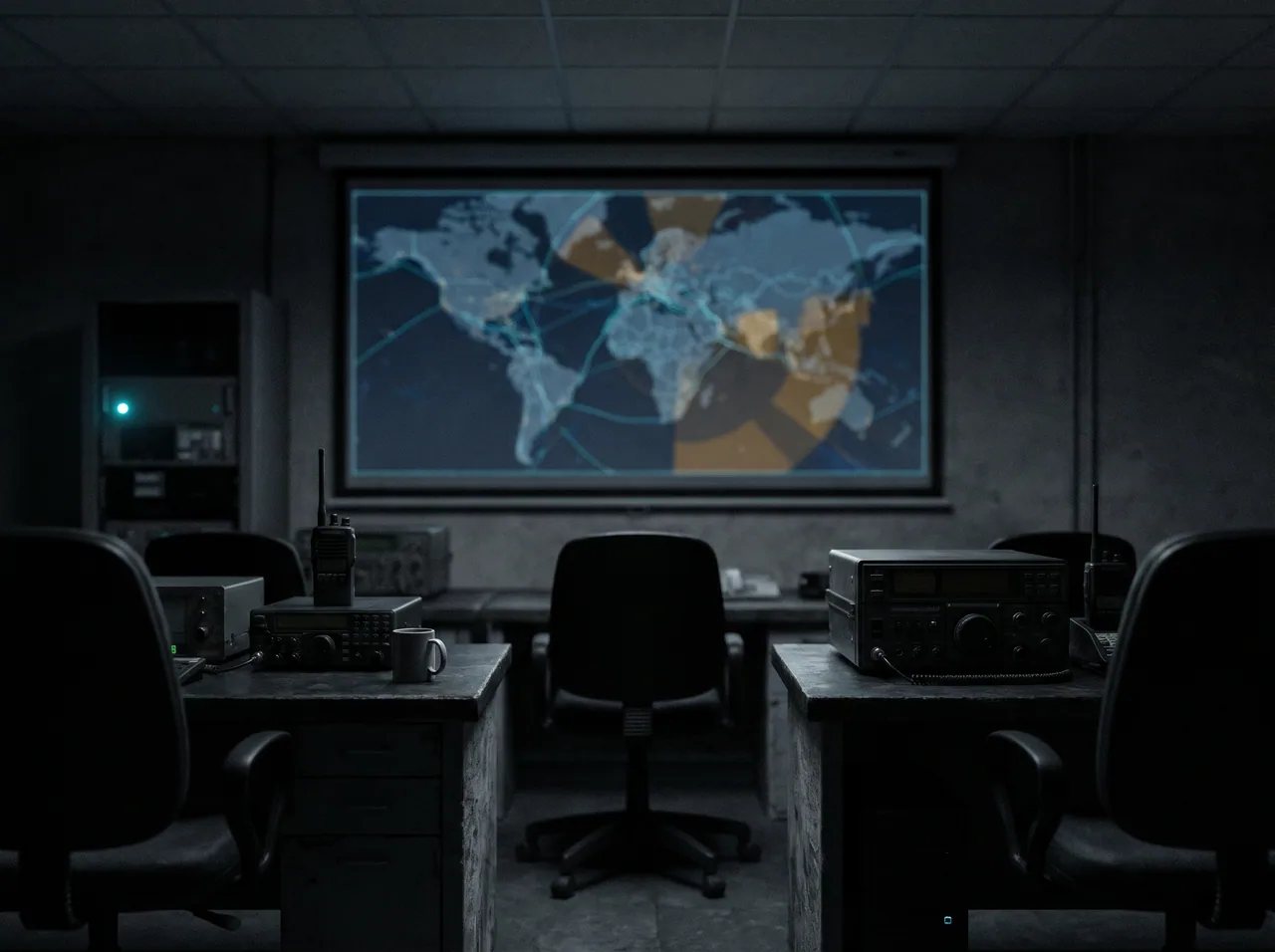
The whole room works from one map.
Teams, tasks, zones, planned flights and open alerts sit on one map that updates on its own.
- Live
Teams and tasks
Every team sits on the map with the tasks it holds. A new task raises a banner and a chime for the team it goes to.
- Live
Airspace under everything
Your zones and planned flights are drawn on the same map as your teams.
- Live
Confidence in words
Machine confidence on Skyvane screens reads probable, possible or unknown.
- Live
Your own map and grid
Skyvane serves its own map tiles for your permitted areas, with a choice of map type and zoom to level 20. Military grid lines sit on the map and a grid reference reads out under the pointer.
- Live
Grouped labels and own-force warnings
Symbols that crowd together group under one label that opens as you zoom. A contact near your own people carries an own-force warning on the map.
- Live
Alert rules you set
Rules watch around the clock for own force near a contact, a callsign gone quiet and an area crossing. An Org Admin sets each rule, and open alerts wait in one attention queue.
- At onboarding
Sensor health
A channel that stops reporting loses its coverage fan and grays out on the map.
- Live
Your handhelds on the map
Skyvane exchanges positions and markers with ATAK and WinTAK handhelds on your Team Awareness Kit (TAK) network.
One report, from the command post
14:29. North gate reports a drone.
- Exercise scenario.
The report goes on the map.
The watch officer raises a task at the north fence. It appears on the map for everyone whose role covers that area.
The flight check answers.
The officer checks the planned patrol flight against the north zone. Area reads overlap, time reads overlap and height reads unknown. The answer is Can’t tell.
The duty officer makes the call.
A. Smith closes the planned patrol flight and assigns the task to North team. North team’s screen shows a banner and sounds a chime.
The room stays on one picture.
The command post and North team see the same task at the north fence. The report awaits confirmation by one of your people.
Airspace and planning
Conflict, No conflict found or Can’t tell.
Skyvane checks a planned flight against your zones and your other planned flights and gives one of three answers.
- Live
Each check shows its working
Area, height and time are reported line by line as overlap, no overlap found or unknown, so the planner sees which input would settle a Can’t tell.
- Live
Plans are checked before they publish
Routes, areas and times are planned on the same map. Publishing a mission shows the answer to each deconfliction check, and the planner confirms.
- Live
Your zones, your flights
Checks run on the zones and planned flights you have entered in Skyvane.
- Live
Frequency planner
Lay out your drone control and video links and see where two of them clash before a flight. One plan is shared by every team working in an area, with the free video channels listed.
- Live
Heights as you write them
Enter a floor or a ceiling in feet or meters, above ground level or above mean sea level. The datum stays beside the figure in every check.
- Live
Planning on the process you train to
Plan in IDMP or DMAP on the same map, with warning and fragmentary orders and course of action sketches. Save a plan to a team as a live plan or a training plan.
- At onboarding
Line of sight
Line-of-sight, viewshed and route exposure tools show what a position can see across your site’s terrain, with relief, slope and contours on the map.
Decisions and the log
The log records who made each call.
The officer with the call chooses, and the choice is logged with a name and a time. When the board or the commander asks what happened, the log shows what changed, what was unknown, who decided and when.
Task raised at the north fence. Report from North gate. Not confirmed.
A. Smith. Patrol flight closed.
Exercise officer.
Task assigned to North team.
- Live
Append-only
The server writes each audit row from the verified sign-in. The application cannot edit or delete a row.
- Live
Audit gate
If an audit row cannot be written, Skyvane refuses further changes until it can.
- Live
Scoped to command
Commanders read the rows for their own teams.
- Event log: LiveReplay: On the roadmap
Kept in order for the debrief
Every mission event is stored in sequence on the server clock. The replay view plays the event log back for the debrief.
Hosting and access
Hosted in Australia, scoped by role and unit.
Australian regions only
Policy restricts the deployment to Australian cloud regions.
Your work accounts
People sign in with their Microsoft work accounts.
Role tiers
Enrolled User, Team Commander, Unit Commander and Org Admin. The server limits every list to the teams and areas a person’s role covers.
Locked-down delivery
The portal loads code and map tiles only from Skyvane itself, over enforced HTTPS. A release to production goes out only on a named, time-boxed approval.
- At onboarding
Drone video on a private link
Drone video travels over a VPN with a certificate, separate from the browser portal.
Idle lock
A signed-in screen locks after 15 minutes idle.
Your own servers
Built for SECRET networks.
Fully self-contained, runs offline on your servers.
One host
The portal, the policy API, the database and the checking engine code run as one project on a single host.
An internal network
The database and every call between Skyvane’s services sit on a network with no route out.
The model on your own server
The language model runs on a model server you own. Skyvane has no connection to an outside AI service.
Who it is for
Built for commanders, security directors and control room leads.
Defence units and bases
The gate, the patrol and the command post work the same report.
Ports and airports
Long fence lines and no‑fly areas in front of the duty manager.
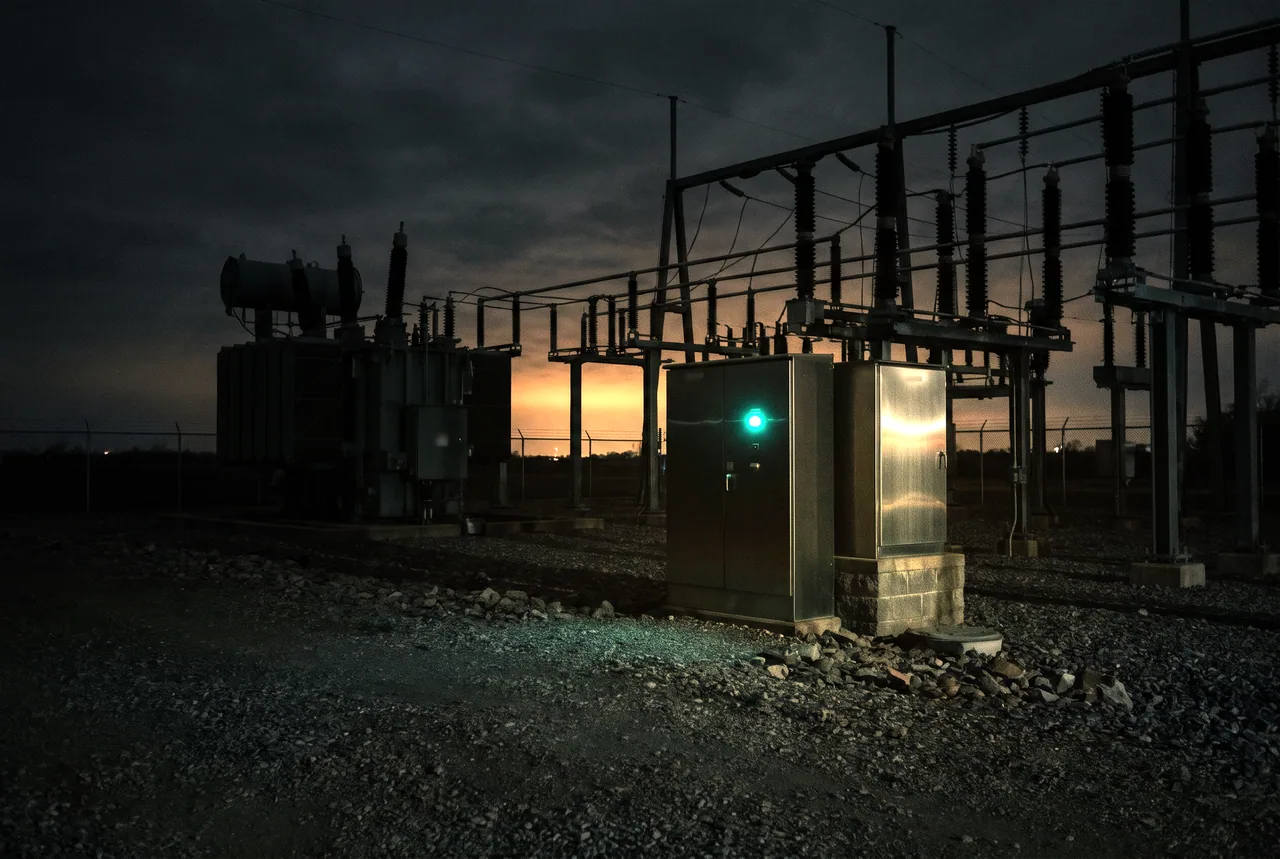
Power, water and fuel sites
Sites hours apart, run from one control room.
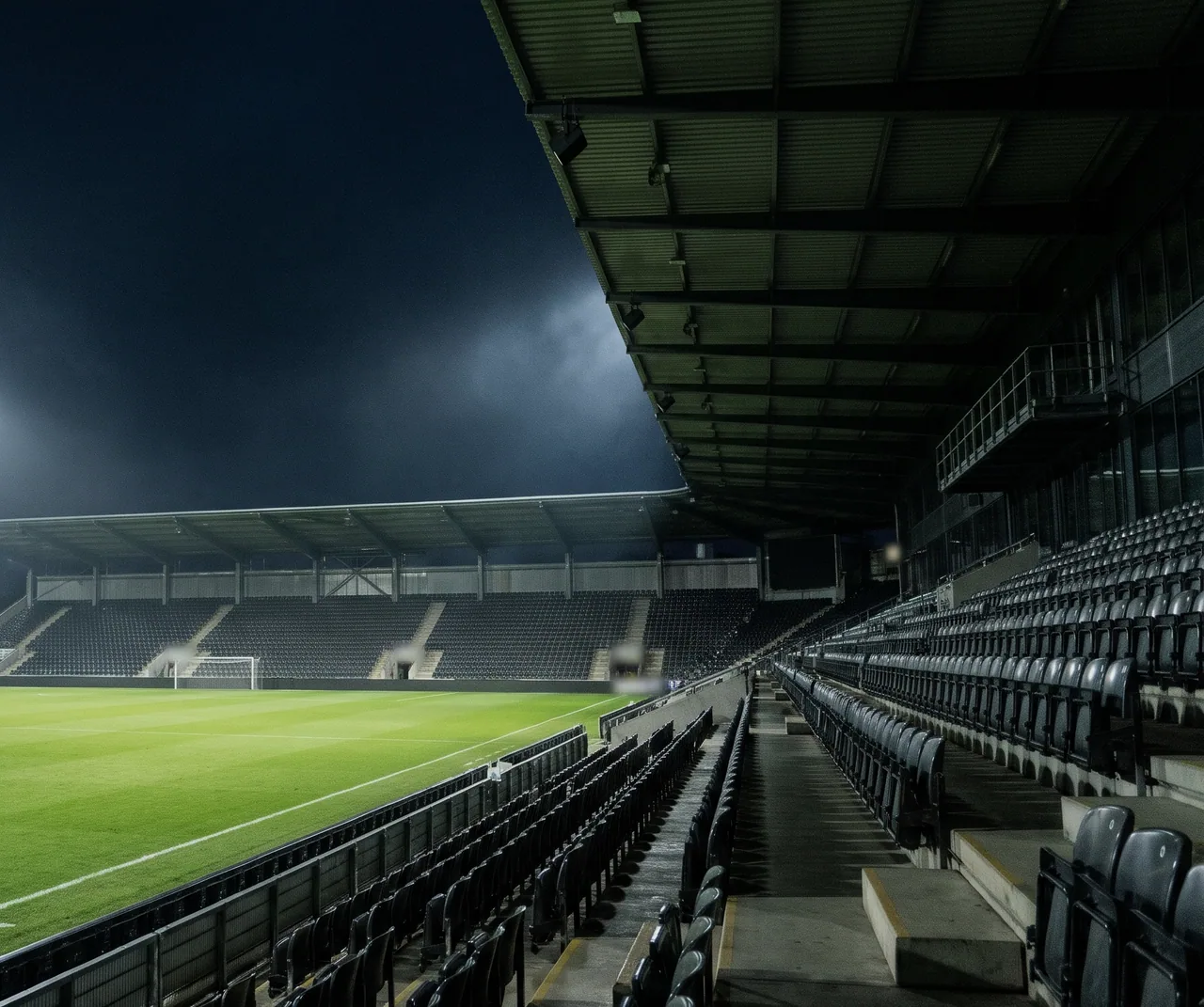
Stadiums and major events
A reported drone over a full house, on one map in front of the duty manager.
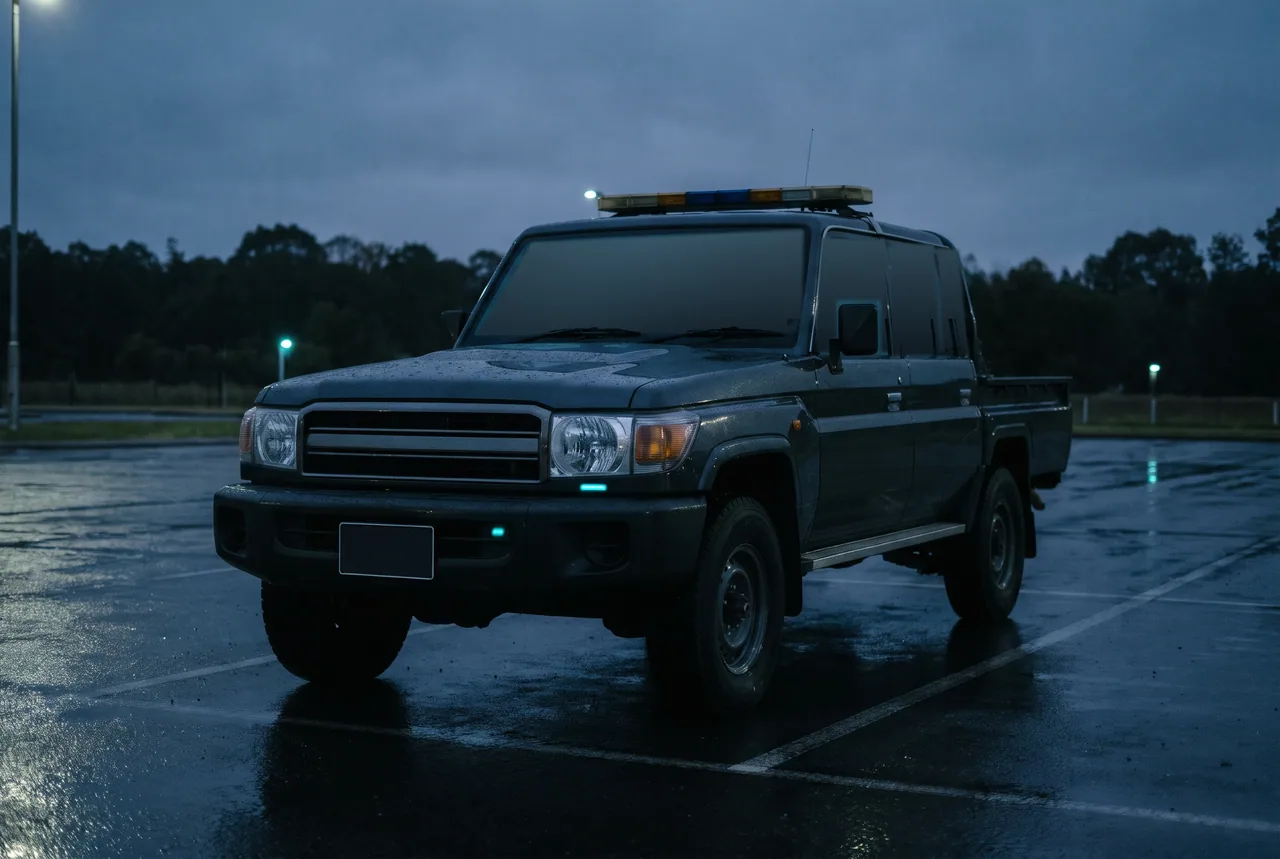
Police and emergency services
Incident control sees its own teams, tasks and drone flights on one map.
Before a briefing
Questions buyers ask.
What does the assistant read?
The assistant reads team status, readiness, fatigue, risk, distance bands and tasks. For a brief of one contact it reads that contact’s stored record.
What does Skyvane put on the map?
Your teams, tasks, zones and planned flights, and the reports your people raise.
Does it act against a drone?
Skyvane does not jam, intercept or take control of any drone. Your people act under their own authorities.
Will it work with our TAK network?
Yes. Skyvane exchanges positions and markers with ATAK and WinTAK handhelds, and field devices join through a VPN gateway.
What airspace data do the checks use?
Your own zones and planned flights. Each check reports area, height and time line by line.
Where is Skyvane hosted?
Black Shard hosts and operates Skyvane in an Australian cloud region. Sign-in runs through Microsoft’s identity service and traffic passes a global edge network.
Can Skyvane run on our own servers?
Built for SECRET networks. Fully self-contained, runs offline on your servers.
Can our own systems connect to it?
Drone video comes in over a private link set up at onboarding. Handheld positions arrive through the TAK exchange. A published API for your own systems is on the roadmap.
Does the whole command post see the same map?
Zones, flights, teams and tasks saved in Skyvane are shared, and each person sees the teams and areas their role covers.
How do we evaluate Skyvane?
Your evaluators are invited as guests and sign in with their own organization’s accounts, as a Team Commander on the demonstration team.
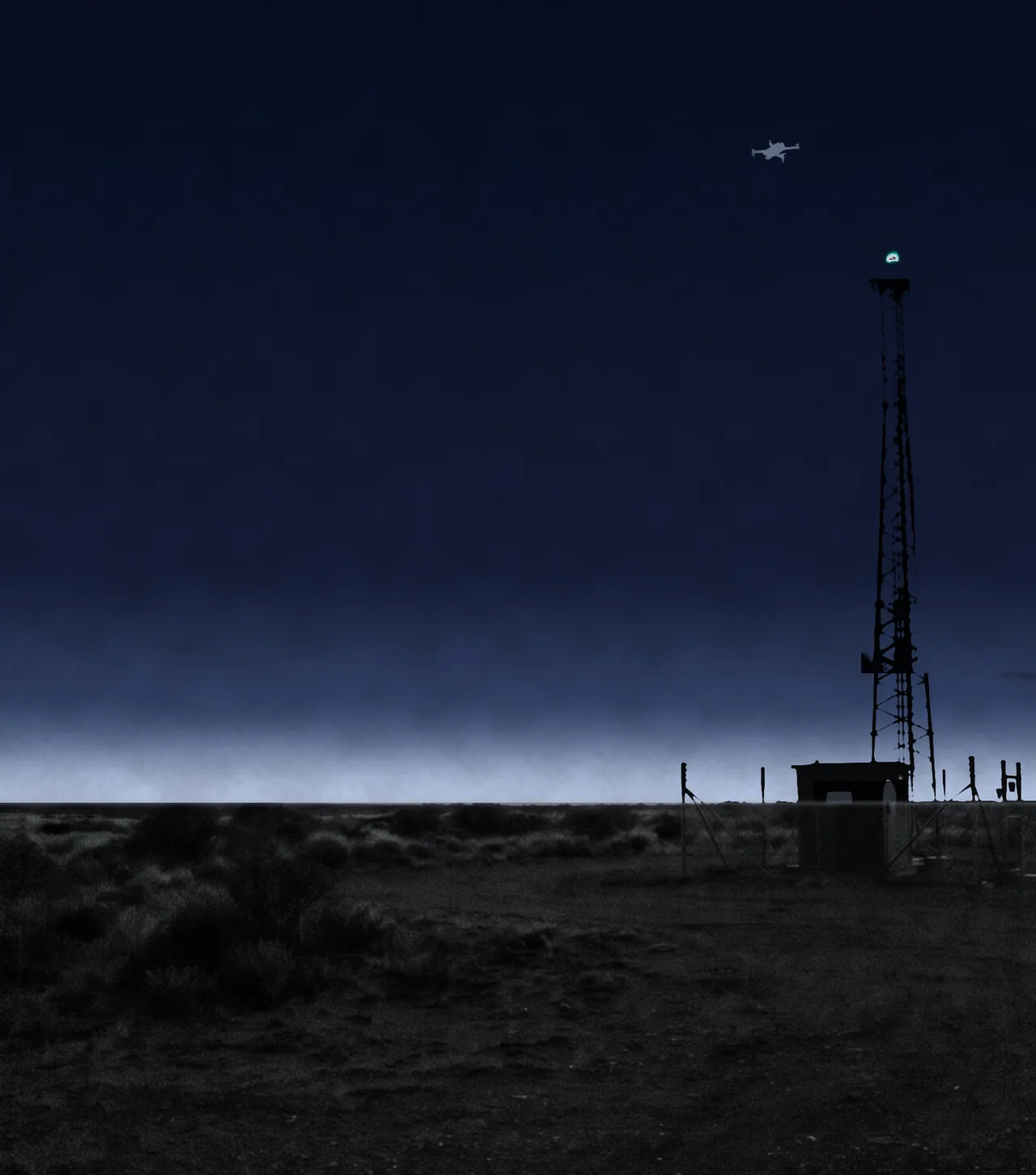

Put Skyvane in your command post.
Tell us about your site and the people who make the call.
Briefing
We walk your command team through a drone report on a demonstration exercise, from the first call to the logged decision.
Guest pass
LiveYour evaluators are invited as guests and sign in with their own organization’s accounts, as a Team Commander on the demonstration team.
Your picture
We load your areas, zones, teams and roles, and connect your drone video channels.
Pricing comes with the briefing.